> For the complete documentation index, see [llms.txt](https://docs.linuxfoundation.org/lfx/llms.txt). Markdown versions of documentation pages are available by appending `.md` to page URLs; this page is available as [Markdown](https://docs.linuxfoundation.org/lfx/project-control-center/v2-latest-version/collaborations/meetings/meeting-audit-log.md).
# Meeting Audit Log
The Meeting Audit Log feature provides a comprehensive history of all changes made to a meeting, including modifications to meeting settings, registrant updates, attendee information, and more. This feature helps project administrators maintain transparency and accountability by tracking who made changes and when.
## Overview
The Meeting Audit Log captures every modification made to a meeting throughout its lifecycle. This includes changes to meeting properties, registrant management, recording settings, AI summary configurations, and participant-related updates.
### Key Features
* **Comprehensive Change Tracking**: Records all modifications to meetings, registrants, attendees, invitees, artifacts, recordings, and summaries
* **User Attribution**: Shows who made each change, including system-triggered changes
* **Advanced Filtering**: Filter logs by date range, user, action type, attributes, and participants
* **Change Grouping**: Groups consecutive changes made by the same user at the same time
* **CSV Export**: Export audit logs to CSV with customizable columns
* **Pagination**: Navigate through large audit logs with configurable page sizes
***
## Accessing the Audit Log
You can access the Meeting Audit Log from the meeting details page.
### For Upcoming Meetings
1. Navigate to **Collaboration > Meetings** in the PCC.
2. Click on a date to view its meetings.
3. Click the **vertical three dots** of your desired meeting to open a dropdown menu.
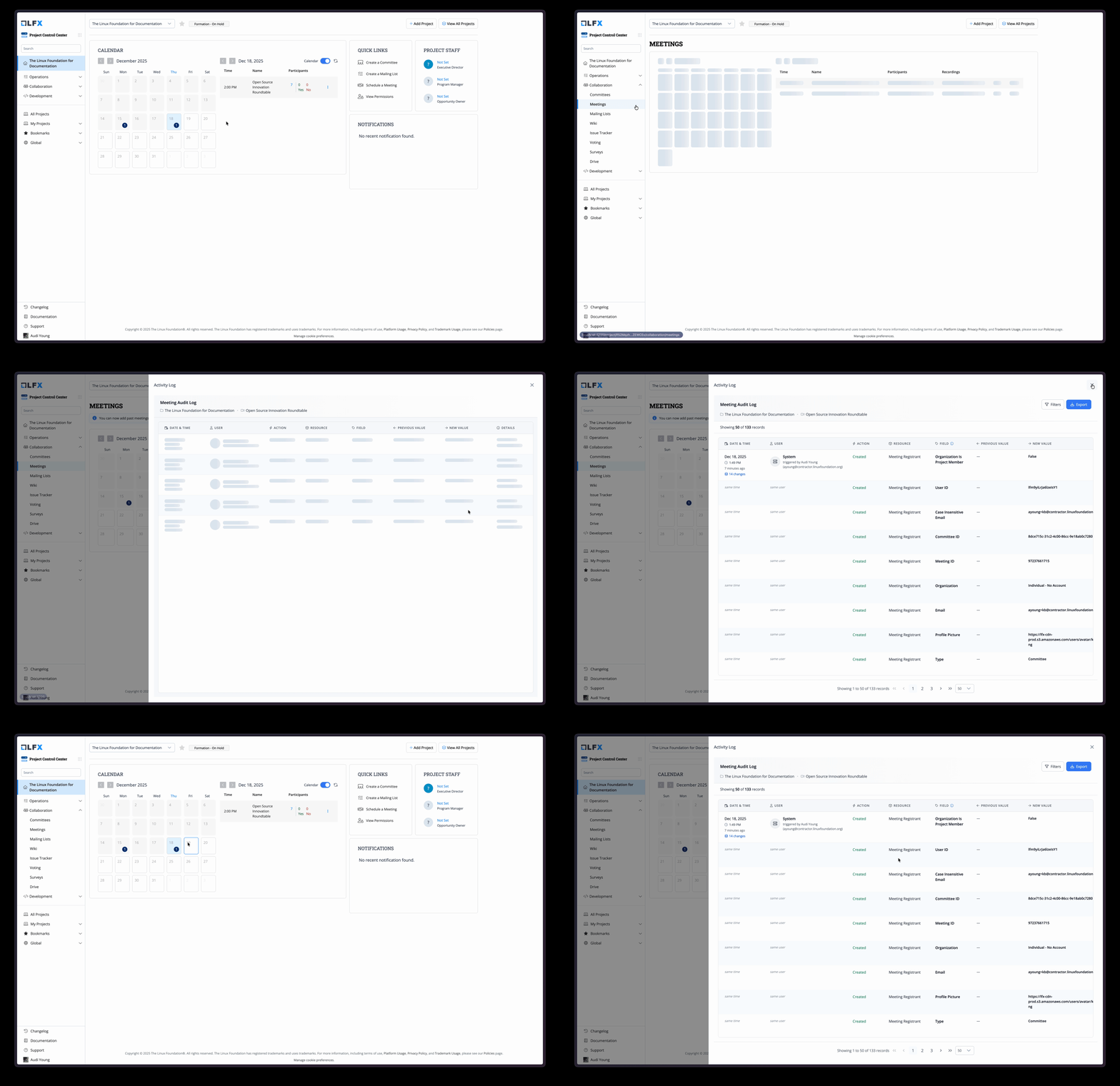
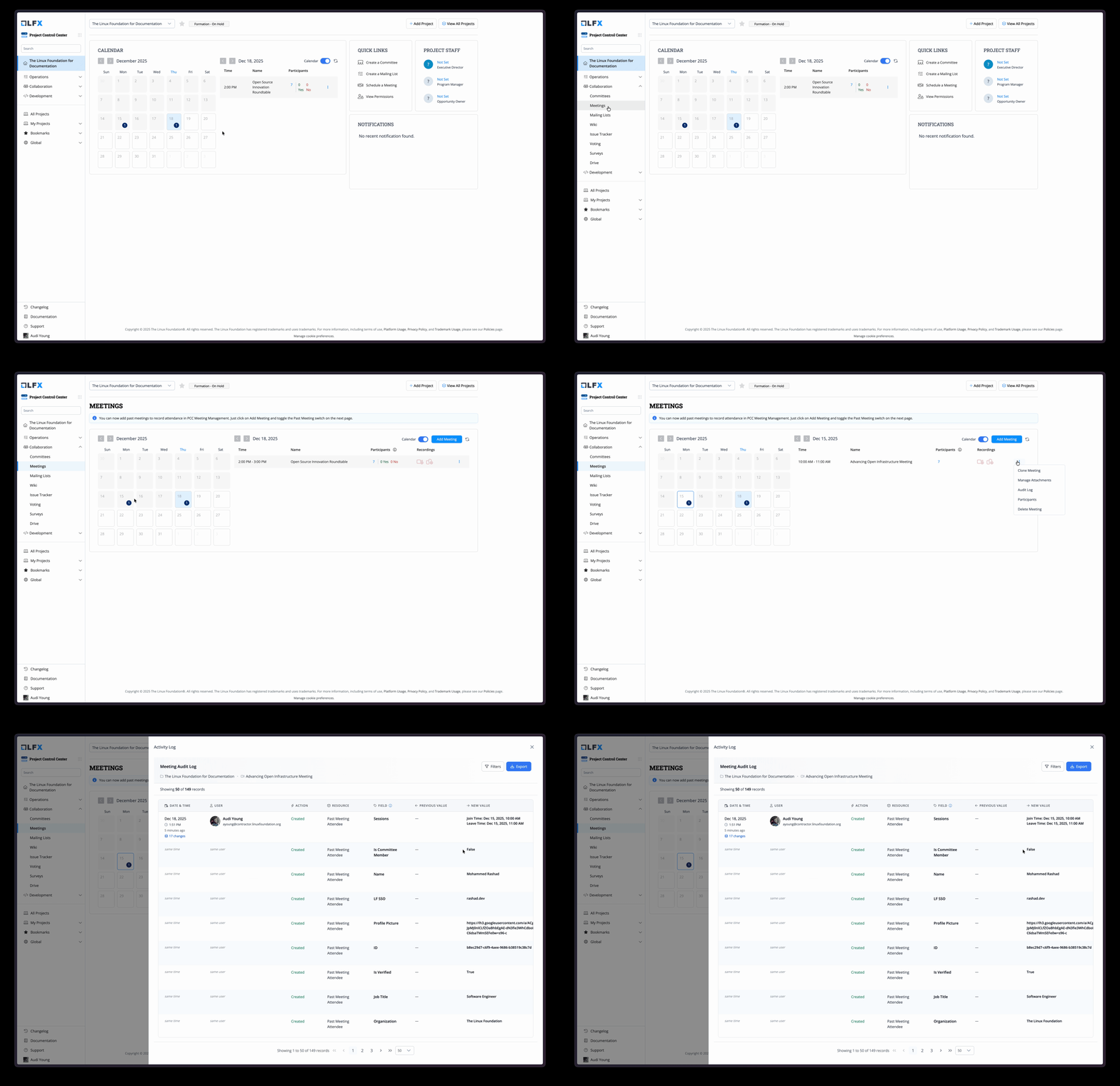
4. Click on **Audit Log** to open the audit log drawer.
Accessing audit log for upcoming meetings
### For Past Meetings
1. Navigate to **Collaboration > Meetings** in the PCC.
2. Click on a past date to view its meetings.
3. Click the **vertical three dots** of your desired meeting to open a dropdown menu.
4. Click on **Audit Log** to open the audit log drawer.
Accessing audit log for past meetings
{% hint style="info" %}
The audit log displays the project name and meeting topic at the top of the panel for easy reference.
{% endhint %}
***
## Understanding the Audit Log Table
The audit log displays changes in a table format with the following columns:
| Column | Description |
| ------------------ | ------------------------------------------------------------------------------------------- |
| **Date & Time** | When the change occurred, displayed with date, time, and relative time (e.g., "2 days ago") |
| **User** | Who made the change—either a named user with avatar or "System" for automated changes |
| **Action** | The type of change: Created, Added, Updated, or Removed |
| **Resource** | The type of resource affected (e.g., Meeting, Registrant, Recording) |
| **Field** | The specific attribute that was changed |
| **Previous Value** | The value before the change (if applicable) |
| **New Value** | The value after the change |
| **Details** | Additional context such as registrant, attendee, or artifact information |
### Change Grouping
When multiple changes are made by the same user at the same time (e.g., updating several meeting fields at once), the audit log groups these changes together. The first row shows the full date/time and user information, while subsequent rows in the group display "same time" and "same user" to reduce visual clutter.
### System vs. User Changes
The audit log distinguishes between:
* **User Changes**: Changes made directly by a user, showing their name, email, and profile picture
* **System Changes**: Automated changes triggered by the system (e.g., Zoom webhooks), displayed with a server icon and may show "triggered by \[user]" when a user action initiated the system change
***
## Filtering Audit Logs
The audit log provides powerful filtering capabilities to help you find specific changes.
### Available Filters
| Filter | Description |
| -------------- | -------------------------------------------------------------- |
| **Date Range** | Filter by start and end dates to narrow down the time period |
| **Attribute** | Select specific fields to see only changes to those attributes |
| **User** | Filter by one or more users who made changes |
| **Action** | Filter by action type: Created, Added, Updated, or Removed |
| **Registrant** | (Upcoming meetings) Filter by specific registrants |
| **Attendee** | (Past meetings) Filter by specific attendees |
### Using Filters
1. Click the **Filters** button in the header to expand the filter panel.
2. Select your desired filter criteria from the dropdown menus.
3. Filters are applied immediately as you make selections.
4. The filter badge shows the number of active filters.
5. Click **Clear All** to reset all filters.
{% hint style="info" %}
When filters are active, the audit log displays how many records match your criteria out of the total records (e.g., "Filtered: 15 of 50 total").
{% endhint %}
***
## Exporting Audit Logs
You can export the audit log data to a CSV file for offline analysis or record-keeping.
### Export Process
1. Click the **Export** button in the audit log header.
2. Select the columns you want to include in the export.
3. The CSV file downloads with the following information:
* Date and time of each change
* User who made the change
* Action type
* Resource type
* Field name
* Previous and new values
* Additional details (registrant, attendee, artifact information)
{% hint style="warning" %}
The export includes all filtered records, not just the current page. Apply filters before exporting if you need a subset of the data.
{% endhint %}
***
## Types of Changes Tracked
The Meeting Audit Log tracks changes across multiple resource types.
### Meeting Properties
Changes to core meeting settings are tracked, including:
* **Basic Settings**: Topic, agenda, start time, duration, timezone
* **Security**: Passcode, password, visibility, restricted access
* **Recording**: Recording enabled/disabled, recording access level
* **Transcription**: Transcript enabled/disabled, transcript access level
* **AI Features**: Zoom AI enabled, AI summary approval requirements, AI summary access
* **YouTube**: YouTube upload enabled, YouTube link
* **Scheduling**: Recurrence patterns, occurrence updates, early join time
### Registrant Changes
* Adding new registrants to a meeting
* Removing registrants from a meeting
* Updating registrant information (name, email, organization, job title)
* Registrant response changes (accepted, declined)
* Host assignment changes
### Attendee Information (Past Meetings)
* Attendee identification and verification
* Session join/leave times
* Attendee matching to LF accounts
### Invitee Management
* Adding invitees to meetings
* Removing invitees
* Invitee information updates
### Artifacts
* Adding artifacts (documents, links) to meetings
* Removing artifacts
* Artifact category and link changes
### Recordings
* Recording availability changes
* Recording access level modifications
* Recording topic updates
### AI Summaries
* Summary creation and updates
* Summary approval status changes
* Summary access level modifications
## Best Practices
### For Project Administrators
1. **Regular Review**: Periodically review the audit log to monitor meeting management activities
2. **Use Filters Effectively**: When investigating specific changes, use the date range and user filters to narrow down results
3. **Export for Records**: Export audit logs before meetings are archived if you need permanent records
4. **Monitor System Changes**: Pay attention to system-triggered changes to understand automated updates
### For Compliance and Governance
1. **Document Retention**: Export audit logs regularly if your organization requires change documentation
2. **Access Review**: Use the audit log to verify who has been making changes to critical meetings
3. **Change Verification**: After bulk updates, review the audit log to confirm all changes were applied correctly
***
## Frequently Asked Questions
**Q: How long are audit logs retained?**\
A: Audit logs are retained for the lifetime of the meeting record. Past meeting audit logs remain available as long as the past meeting data is stored.
**Q: Can I see who viewed a meeting without making changes?**\
A: No, the audit log only tracks modifications to meeting data, not view-only access.
**Q: Why do some changes show "System" as the user?**\
A: System changes are automated updates triggered by external events (e.g., Zoom webhooks) or scheduled processes. When available, the system shows which user's action triggered the automated change.
**Q: Can I undo changes shown in the audit log?**\
A: The audit log is read-only and serves as a historical record. To revert changes, you must manually update the meeting with the previous values shown in the log.
**Q: Why are some changes grouped together?**\
A: Changes made by the same user within the same timestamp are grouped to improve readability. This commonly occurs when multiple fields are updated simultaneously (e.g., saving a form with multiple field changes).
**Q: Can I filter by multiple users or actions?**\
A: Yes, all filter dropdowns support multi-select. You can select multiple users, actions, or attributes to include in your filtered view.
**Q: What's the difference between Registrant and Attendee filters?**\
A: The Registrant filter appears for upcoming meetings (people registered to attend), while the Attendee filter appears for past meetings (people who actually attended).
---
# Agent Instructions
This documentation is published with GitBook. GitBook is the documentation platform designed so that both humans and AI agents can read, navigate, and reason over technical content effectively. Learn more at gitbook.com.
## Querying This Documentation
If you need additional information that is not directly available in this page, you can query the documentation by asking a question.
Perform an HTTP GET request on the following URL with the `ask` and `goal` query parameters:
```
GET https://docs.linuxfoundation.org/lfx/project-control-center/v2-latest-version/collaborations/meetings/meeting-audit-log.md?ask=&goal=
```
`ask` is the immediate question: it should be specific, self-contained, and written in natural language.
`goal` is what the user is ultimately trying to achieve, the reason they need the answer. Sharing it helps GitBook give you a better, more relevant answer. A goal is most helpful when it describes the outcome the user wants rather than restating the question. For example, with `ask=how do I create an API token`, a goal like `automate deployments from our CI pipeline` lets GitBook tailor the answer to that use case.
The response will contain a direct answer to the question and relevant excerpts and sources from the documentation.
Use this mechanism when the answer is not explicitly present in the current page, you need clarification or additional context, or you want to retrieve related documentation sections.