> For the complete documentation index, see [llms.txt](https://docs.linuxfoundation.org/lfx/llms.txt). Markdown versions of documentation pages are available by appending `.md` to page URLs; this page is available as [Markdown](https://docs.linuxfoundation.org/lfx/project-control-center/v2-latest-version/collaborations/voting-feature/casting-a-vote.md).
# Casting a Vote
When a vote is enabled by a committee administrator, each eligible committee member receives an email notification with instructions to cast their vote. This guide walks you through the complete voting process, from accessing the vote to submitting your response.
## Accessing the Vote
There are two ways to access an active vote:
### Option 1: Email Notification
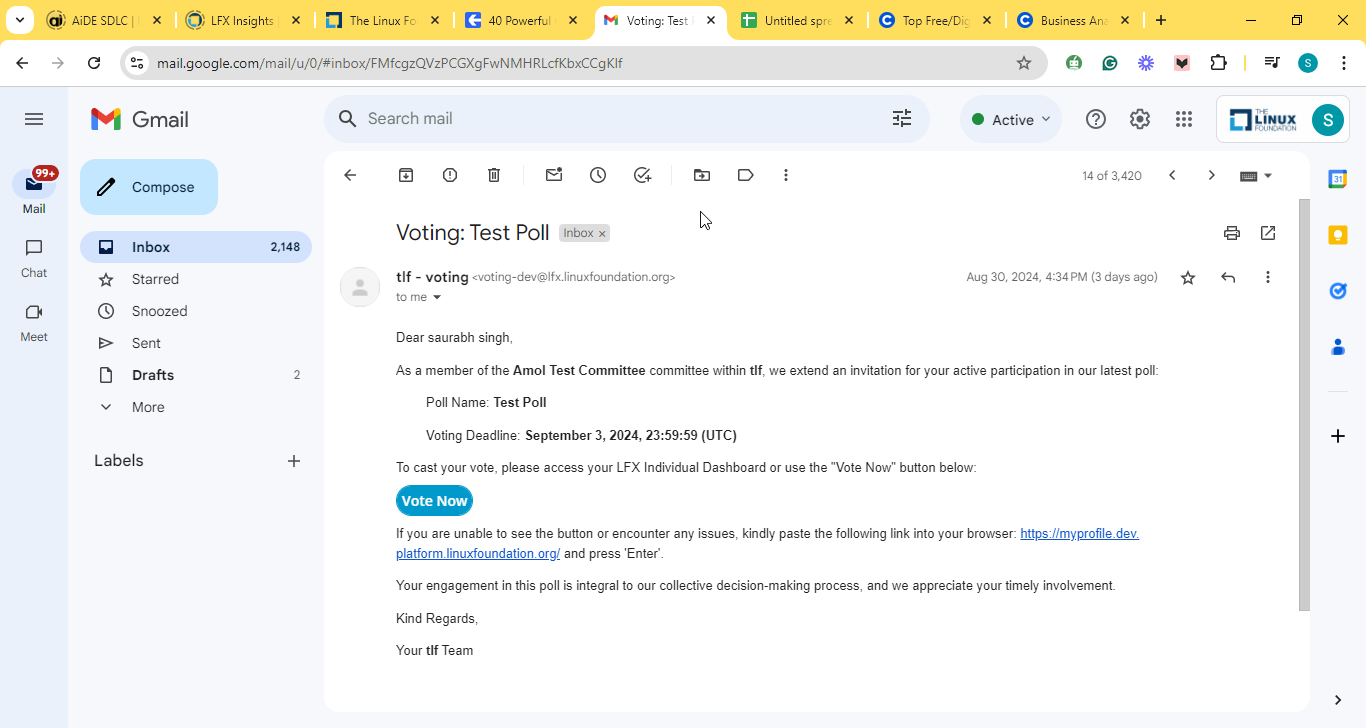
When a vote is enabled, you will receive an email with the vote details and a **Vote Now** button.
Vote Now email notification
1. Open the voting email from your inbox.
2. Click **Vote Now** to go directly to the voting page.
### Option 2: LFX Individual Dashboard
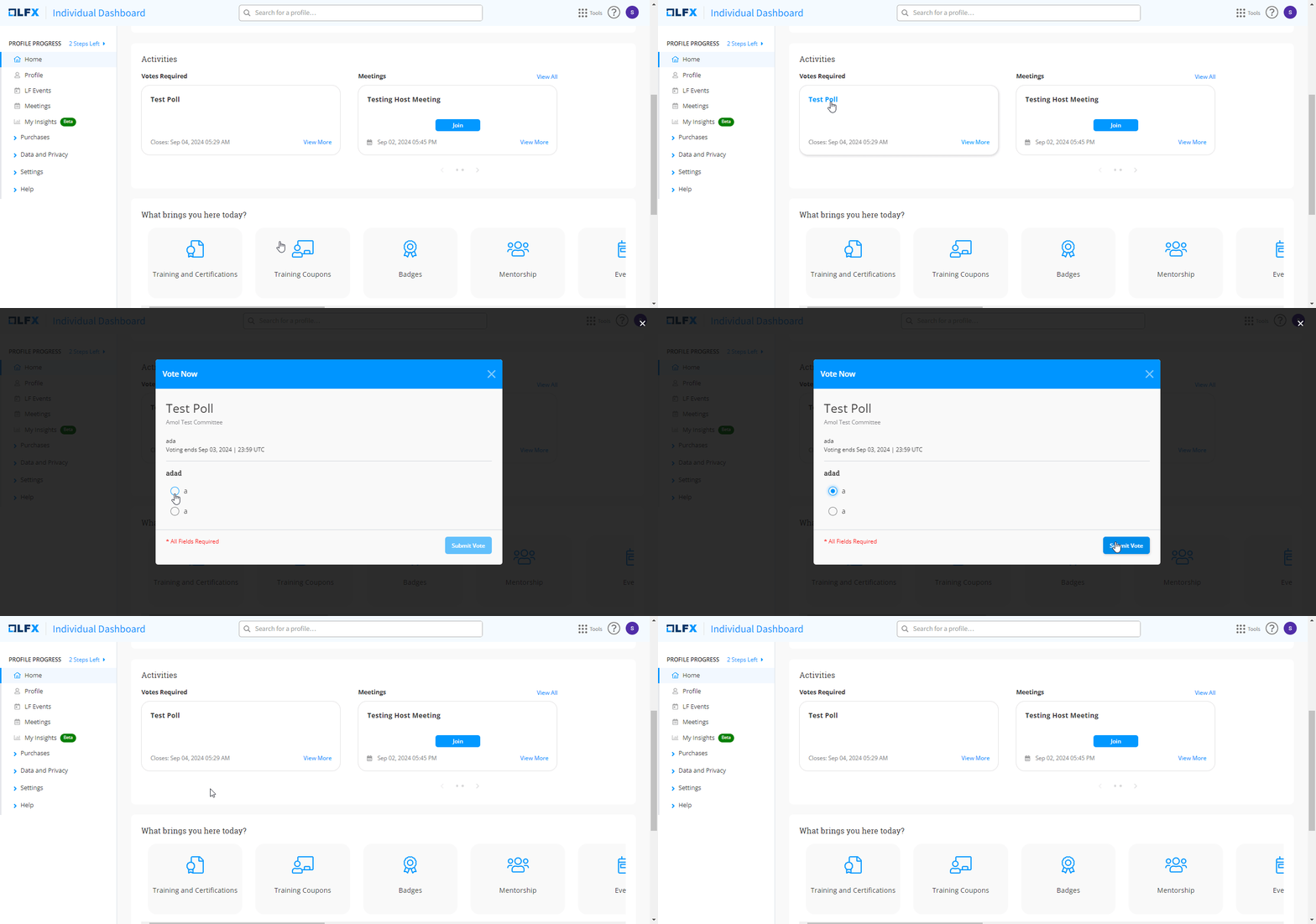
You can also access active votes from your Individual Dashboard.
Voting
1. Log in to your **LFX Individual Dashboard**.
2. Locate the voting notification under **Activities**.
3. Click the name of the vote to open the voting page.
***
## What You Will See
When you open a vote, the voting page displays:
* **Vote name** and **description** providing context for the vote
* **Close date** — the deadline by which you must submit your vote
* **Questions** — one or more questions to respond to (displayed as tabs if there are multiple questions)
* **Options** — the available choices for each question
* **Abstain checkbox** — if the administrator has enabled the abstain option (see [Abstaining from a Vote](#abstaining-from-a-vote) below)
* **Submit Vote** button
***
## How to Vote by Voting Type
The way you interact with the vote depends on the voting type chosen by the administrator. For a detailed explanation of each voting type, see [Voting Feature](/lfx/project-control-center/v2-latest-version/collaborations/voting-feature.md).
### Plurality (Hybrid)
Plurality voting is the simplest method. Depending on how the vote creator configured each question, you will either pick one option or multiple options.
1. Read the question and review the available options.
2. **Single choice question** — Select one option.
3. **Multiple choice question** — Select one or more options.
4. If the vote has multiple questions, use the question tabs to navigate between them.
5. Click **Submit Vote** when you have answered all questions.
{% hint style="info" %}
The question type (single or multiple choice) is set by the vote creator and indicated on each question.
{% endhint %}
### Majority
Majority voting requires a winning option to reach a specified threshold (e.g., 50% or 75%). Each voter picks one option per question.
1. Read the question and review the available options.
2. Select **one** option per question.
3. If the vote has multiple questions, use the question tabs to navigate between them.
4. Click **Submit Vote** when you have answered all questions.
### Ranked Choice (Condorcet IRV, Instant Runoff, Meek STV)
Ranked choice methods require you to rank all options in order of preference. This applies to **Condorcet IRV**, **Instant Runoff**, and **Meek STV** voting types.
1. Read the question and review all available options.
2. Rank the options in your order of preference — assign **1st** to your top choice, **2nd** to your next preference, and so on.
3. You must rank **all** options to submit your vote.
4. If the vote has multiple questions, use the question tabs to navigate between them.
5. Click **Submit Vote** when you have ranked all options for every question.
{% hint style="info" %}
**Tip:** Your ranking matters beyond just your first choice. If your top-ranked option is eliminated during counting, your vote transfers to your next preference. Rank all options thoughtfully.
{% endhint %}
| Voting Type | What You Do | How the Winner Is Decided |
| ------------------ | ------------------------ | ----------------------------------------------------- |
| **Plurality** | Pick one or more options | Most votes wins |
| **Majority** | Pick one option | Must reach threshold and optionally meet quorum |
| **Condorcet IRV** | Rank all options | Condorcet winner, or IRV tiebreaker |
| **Instant Runoff** | Rank all options | Eliminate lowest, redistribute until one has majority |
| **Meek STV** | Rank all options | Elect multiple winners via quota |
***
## Abstaining from a Vote
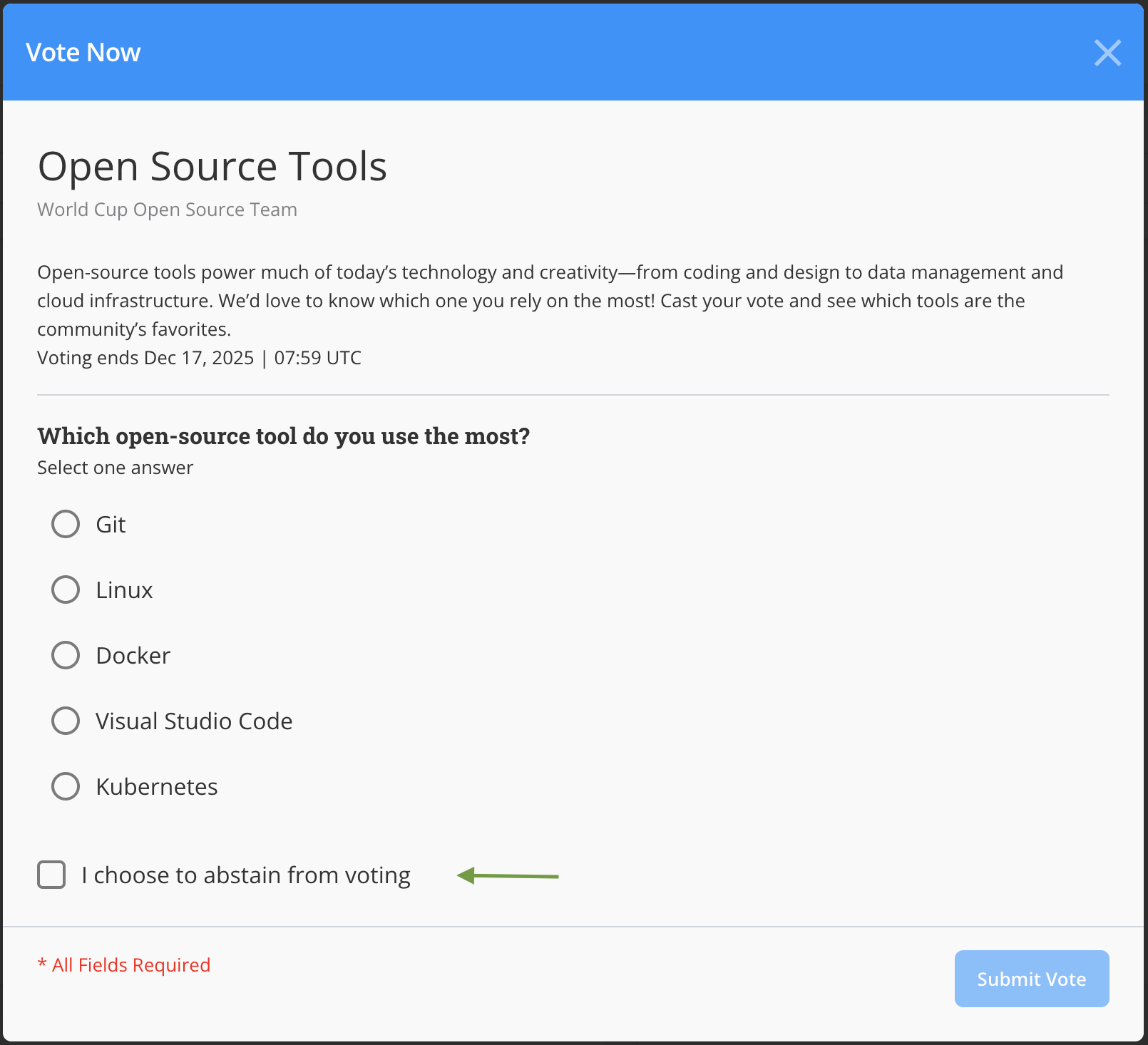
If the vote administrator has enabled the **Allow Abstain Option**, you can formally decline to vote instead of selecting options. Abstaining records your decision not to participate in the vote, which is different from simply not responding.
Abstain voting checkbox
1. On the voting page, check the **I choose to abstain from voting** checkbox.
2. Confirm your decision to abstain.
{% hint style="warning" %}
Abstaining is final. Once you submit an abstain vote, you cannot change it to a regular vote unless the vote administrator extends the deadline. Abstaining applies to the **entire vote** — you cannot abstain from individual questions.
{% endhint %}
For more details on abstain voting, including how it differs from not responding and how results are displayed, see [Abstain Voting](/lfx/project-control-center/v2-latest-version/collaborations/voting-feature/abstain-voting.md).
***
## Submitting Your Vote
Once you have made your selections (or chosen to abstain):
1. Review your choices for all questions.
2. Click **Submit Vote**.
3. A confirmation message appears indicating your vote has been recorded.
{% hint style="warning" %}
**Your vote is final.** Once submitted, you cannot change your selections or switch between voting and abstaining. If the vote administrator extends the deadline, you may have the opportunity to revote.
{% endhint %}
***
## Important Information
{% hint style="info" %}
**Voting deadline:** All votes close at **11:59 PM Pacific Time** on the close date set by the administrator. Make sure to submit your vote before the deadline.
{% endhint %}
{% hint style="info" %}
**Multiple questions:** If a vote contains more than one question, make sure you answer all questions before submitting. Use the question tabs to navigate between them.
{% endhint %}
{% hint style="info" %}
**Reminders:** If you have not yet voted, the vote administrator may send you a reminder email. Members who have already voted or abstained will not receive reminders.
{% endhint %}
{% hint style="info" %}
**Need help?** If you experience any issues accessing or submitting your vote, contact your committee administrator.
{% endhint %}
---
# Agent Instructions
This documentation is published with GitBook. GitBook is the documentation platform designed so that both humans and AI agents can read, navigate, and reason over technical content effectively. Learn more at gitbook.com.
## Querying This Documentation
If you need additional information that is not directly available in this page, you can query the documentation by asking a question.
Perform an HTTP GET request on the following URL with the `ask` and `goal` query parameters:
```
GET https://docs.linuxfoundation.org/lfx/project-control-center/v2-latest-version/collaborations/voting-feature/casting-a-vote.md?ask=&goal=
```
`ask` is the immediate question: it should be specific, self-contained, and written in natural language.
`goal` is what the user is ultimately trying to achieve, the reason they need the answer. Sharing it helps GitBook give you a better, more relevant answer. A goal is most helpful when it describes the outcome the user wants rather than restating the question. For example, with `ask=how do I create an API token`, a goal like `automate deployments from our CI pipeline` lets GitBook tailor the answer to that use case.
The response will contain a direct answer to the question and relevant excerpts and sources from the documentation.
Use this mechanism when the answer is not explicitly present in the current page, you need clarification or additional context, or you want to retrieve related documentation sections.