For the complete documentation index, see llms.txt. This page is also available as Markdown.

Committee ↔ Mailing List Sync

Overview

A committee's membership and a Groups.io mailing list's subscriber list can be kept in sync automatically, so you don't have to add or remove people in both places by hand every time membership changes.

Each mailing list that's linked to a committee has its own Sync Direction, which controls how membership updates flow between the two:

Sync Direction
Label in PCC
What it does

Committee → List

Committee → List

New committee members are added to the mailing list automatically. On a private list, members removed from the committee are also removed from the list; on a public list, removals are not propagated.

List → Committee

List → Committee

Members added to the mailing list are automatically added to the linked committee. Members removed from the list are also removed from the committee.

Manual

Manual

Nothing propagates automatically. Use Manual Sync whenever you want to reconcile membership between the committee and the list.

Automatic propagation runs in the background and is not instantaneous — allow a short delay after a membership change before it appears on the other side.

Where to configure sync

There are three places in PCC where you can set up or change a mailing list's sync behavior. They all edit the same underlying setting, so it doesn't matter which one you use — pick whichever is more convenient for what you're doing.

1. Committee page — Sync drawer

The fastest way to set up or remove automatic sync for a committee, and to run a manual sync, without leaving the committee page.

  1. Click Collaboration > Committees from the left navigation, and open the committee.

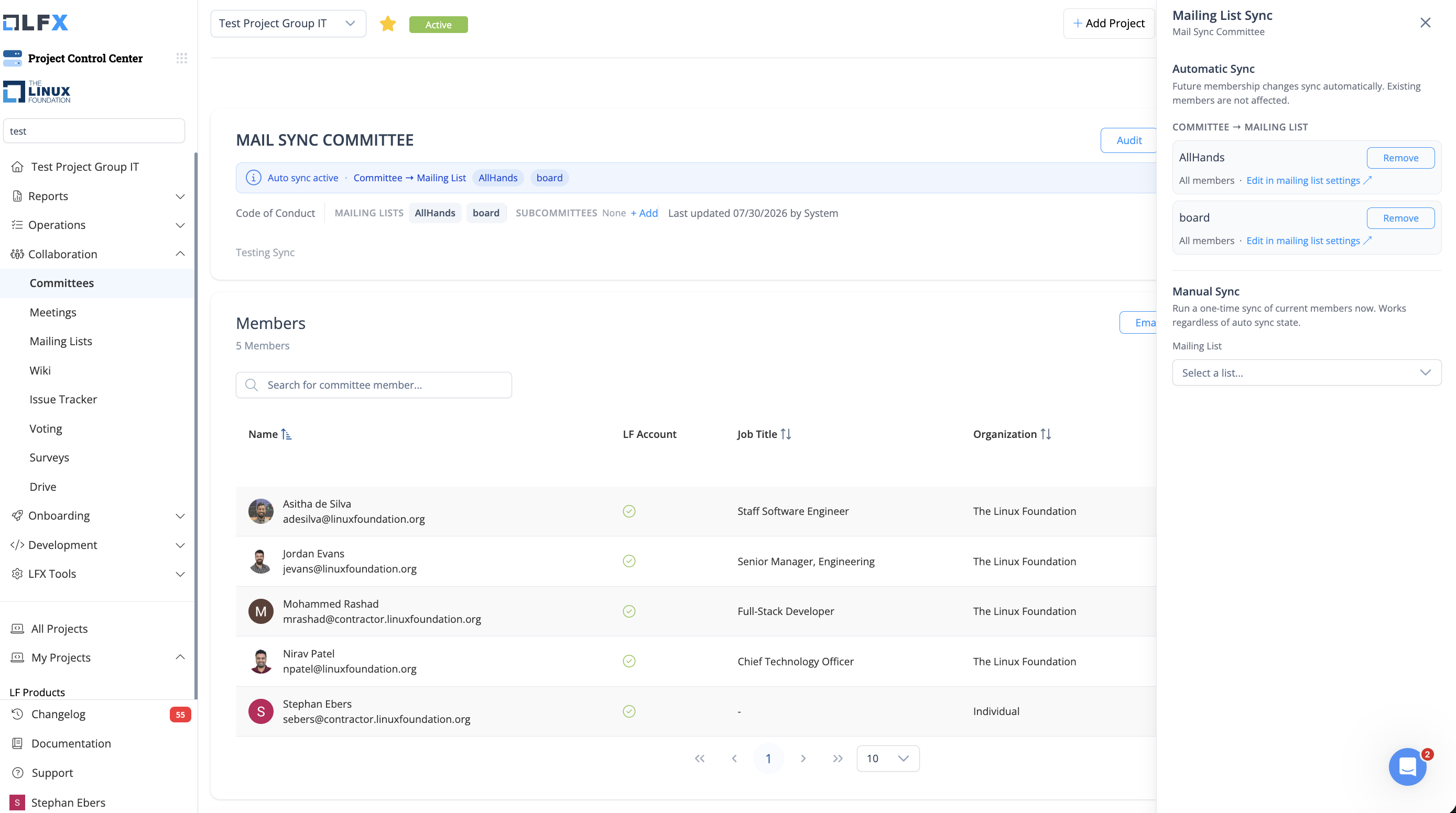
  2. Click the Sync button near the top of the committee page. This opens the Mailing List Sync drawer.

  3. The drawer shows two sections:

    • Automatic Sync — lists the active Committee → Mailing List and Mailing List → Committee rules for this committee (each with a Remove button), plus an Add Rule control: pick a Direction (only shown if no direction is established yet) and a Mailing List, then click Set auto sync.

    • Manual Sync — pick a mailing list and click Sync Now to run a one-time sync, regardless of the auto sync state.

The Mailing List Sync drawer, showing the Automatic Sync and Manual Sync sections
The drawer's own copy makes this explicit: "Future membership changes sync automatically. Existing members are not affected." Turning on automatic sync does not retroactively add or remove anyone who was already a member before the rule was created — use Sync Now to reconcile existing members.

2. Committee page — Configure Mailing Lists dialog

Use this when you're linking or unlinking several mailing lists for one committee at once (not just adjusting an existing rule).

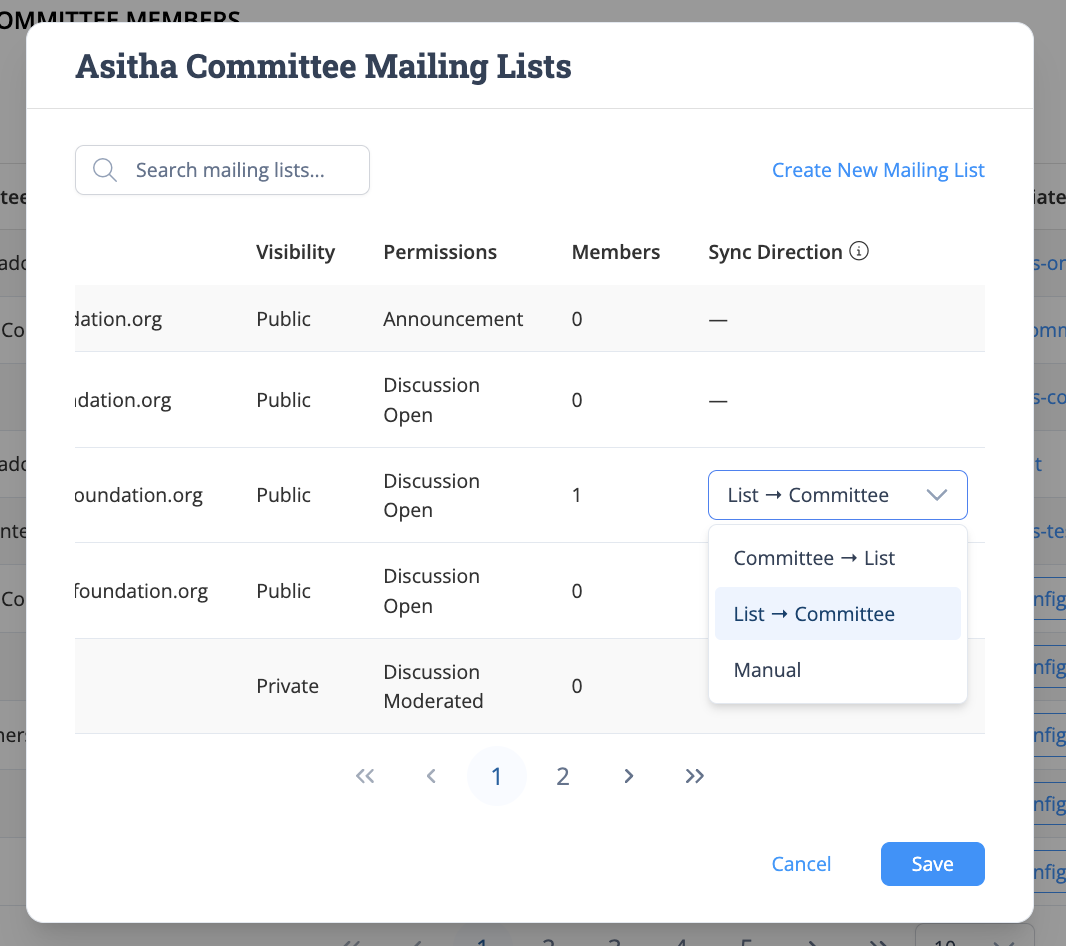
  1. From the same committee page, click Configure next to Mailing Lists to open the Configure Mailing Lists dialog.

  2. Check the mailing lists you want linked to the committee. For each checked list, a Sync Direction dropdown appears with the options Committee → List, List → Committee, and Manual.

  3. Click Save.

The Configure Mailing Lists dialog, with a per-list Sync Direction dropdown
3. Mailing list side — Manage Members page

Use this when you're already working on a specific mailing list and want to adjust its sync behavior without opening the committee page at all.

  1. Click Collaboration > Mailing Lists from the left navigation, and open the list's Manage Members page.

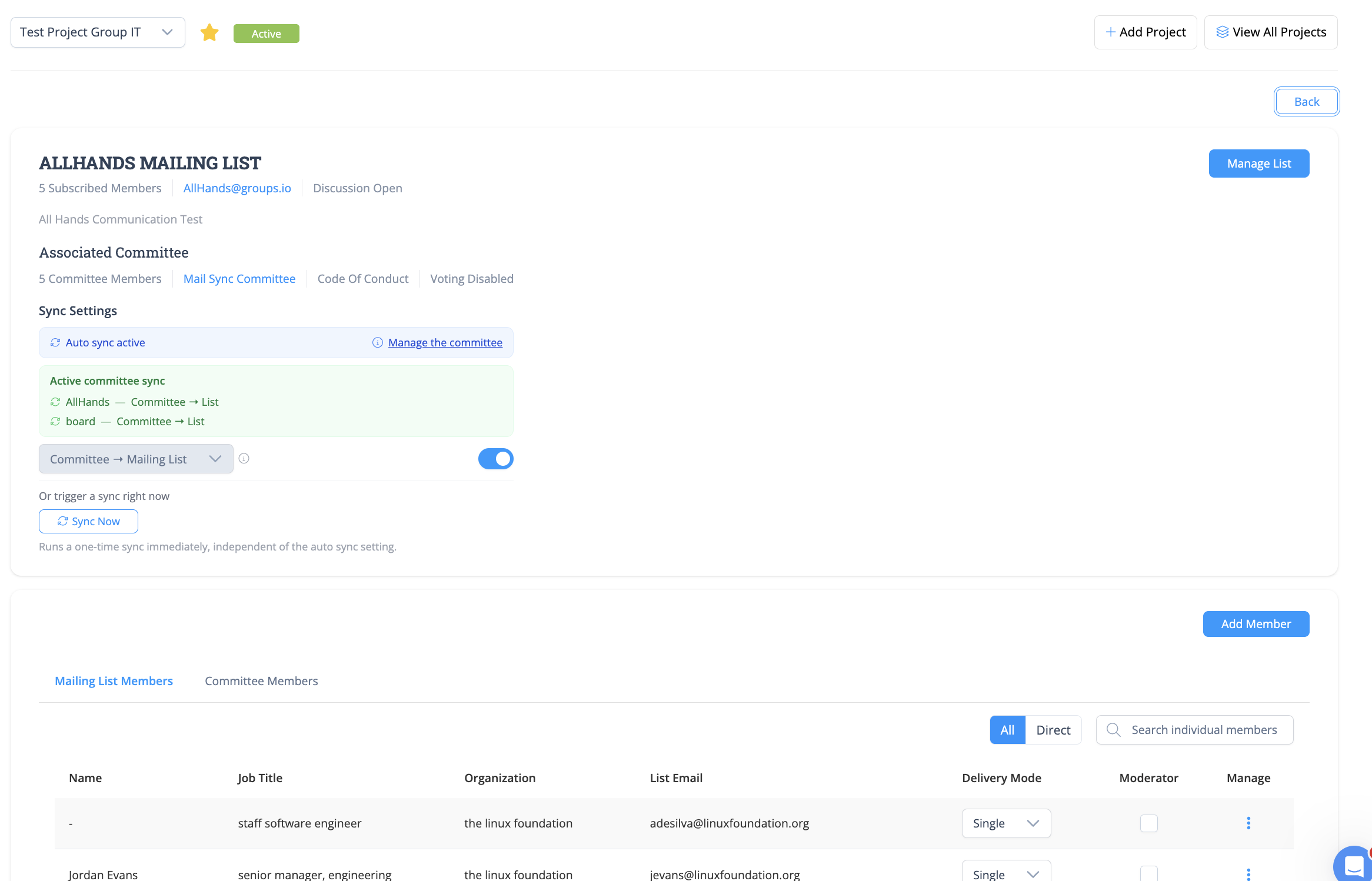
  2. If the list is linked to a committee, a Sync Settings section appears showing the associated committee and a toggle for automatic sync.

  3. Use the direction dropdown to pick Committee → List or List → Committee, then use the toggle switch to turn automatic sync on or off (turning it off sets the list back to Manual).

  4. A Sync Now button underneath lets you trigger a one-time sync immediately, independent of the auto sync setting.

The Sync Settings section on a mailing list's Manage Members page
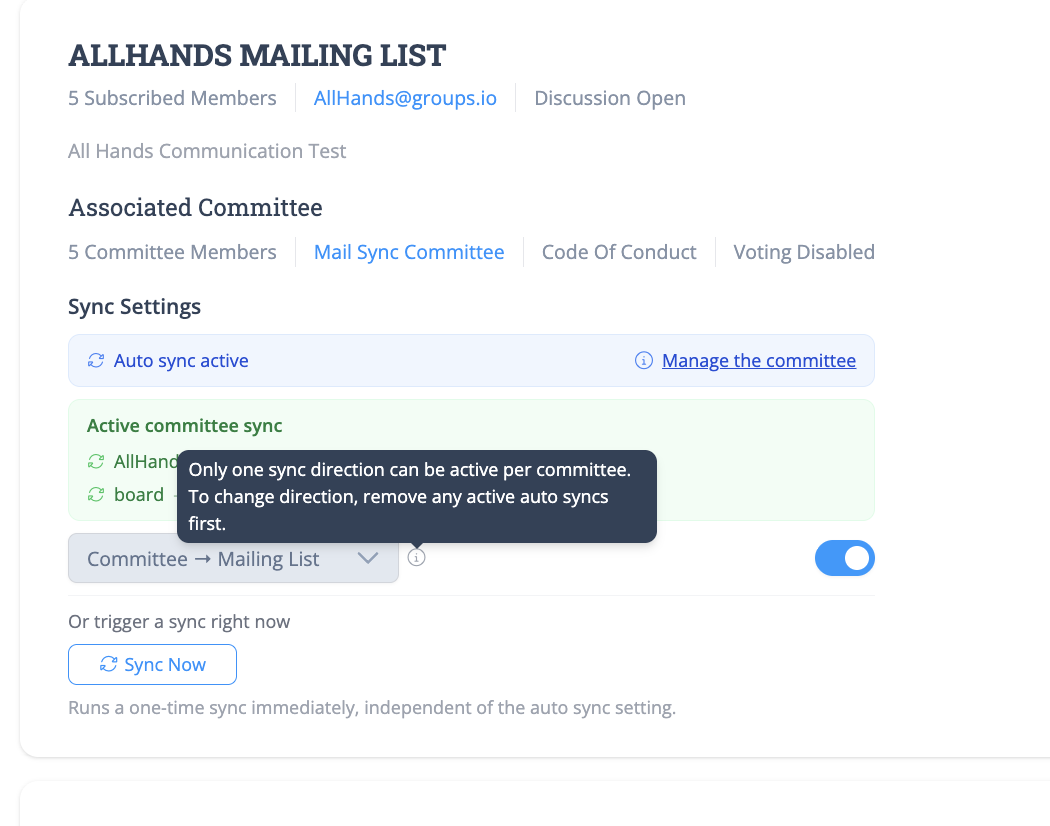
If another list linked to the same committee already has an automatic sync rule that conflicts with the one you're trying to set (see rules below), the direction dropdown and toggle here are disabled, with a tooltip explaining that only one sync direction can be active per committee at a time.

The direction control is disabled when the committee already has an active sync in the other direction

Rules for Sync Direction

PCC enforces the following rules when you save a Sync Direction, no matter which of the three places above you use:

  • You can't mix directions on the same committee. If any mailing list under a committee is set to List → Committee, no list under that same committee can be set to Committee → List, and vice versa. Lists set to Manual don't count toward this rule.

  • Only one "List → Committee" list is allowed per committee. A committee can receive automatic membership updates from at most one mailing list at a time.

  • Multiple "Committee → List" lists are allowed. Unlike List → Committee, there's no cap — a committee can push its membership out to any number of mailing lists at once.

  • "List → Committee" is only meant for private lists. The dropdown doesn't stop you from picking a public list, but the sync is rejected server-side if the list isn't private, since a public list's subscriber list isn't a reliable signal of who should be on the committee.

  • Re-linking a mailing list to a different committee resets its Sync Direction to Manual. If you change which committee a mailing list is associated with, go back and re-set the direction for the new committee afterward.

The Committee Filter

Every mailing list linked to a committee that has voting enabled has a Committee Filter — a set of voting statuses (Voting Rep, Alternate Voting Rep, Observer, Emeritus) that determines which committee members are eligible for sync.

  • Where it's set: On the mailing list itself, not the committee dialog — in the Committee Filters field shown when adding or editing a mailing list (only visible once you've selected a committee that has voting enabled). It's a per-list setting, so different lists linked to the same committee can have different filters.

  • Where you'll see it (read-only): On the committee page, each linked list shows its active filter (or "All members" if none is set) next to a link back to the mailing list's settings, since it can only be changed there.

The Committee Filters field in the Edit List dialog, shown once a voting-enabled committee is selected
The filter's effect depends on the sync direction:

  • Committee → List: Only committee members whose voting status matches one of the selected filter values are synced to the mailing list. Members who don't match are not added (and if the list is private, a member who no longer matches after a status change is removed). Leaving the filter empty means all committee members are eligible, regardless of voting status. During a manual sync preview, an info banner reminds you the results are "Filtered to <role> members only (configured in mailing list settings)."

  • List → Committee: The filter controls what voting status a newly-synced member is given on the committee, not whether they're synced — every list subscriber is still added to the committee.

    • If exactly one voting status is selected in the filter, new members are added to the committee with that voting status.

    • If multiple statuses are selected, or no filter is set at all, new members are added to the committee as Observer.

When a List → Committee member can't be added

For List → Committee sync (both automatic and manual), a mailing list subscriber can only be added to the committee if they can be matched to a single existing person. Two cases prevent a member from being added:

  • The subscriber isn't a known LFX user. A list member can only be synced to the committee if their email is already associated with a user in the LFX user service. If the person isn't known to LFX, they are not added: automatic sync silently skips them, and a manual sync reports an error for that member. To add them, an admin has to add the person to the committee manually. (Automatic creation of the LFX user during sync is planned for a later release.)

  • The person is already on the committee under a different email. If someone is already a committee member but subscribed to the list with a different email address, they are not added again — this avoids creating a duplicate committee member. Automatic sync skips them, and a manual sync reports an error (surfaced under the preview's Email conflicts tab) so you can reconcile the addresses yourself if needed.

These two cases are the reason a manual sync can complete with errors, or an auto sync can leave a list subscriber off the committee even though the direction is List → Committee. It is expected behavior, not a failure of the sync itself.

Manual Sync

Manual sync lets you reconcile membership between a committee and a mailing list on demand, in either direction. It's always available, for any list, regardless of its configured Sync Direction (including Manual) and regardless of visibility or filters.

You can trigger it from either place that has a "Sync Now" control:

  • From the committee page's Sync drawer: open the Manual Sync section, pick a mailing list from the dropdown, and click Sync Now.

  • From the mailing list's Manage Members page: under Sync Settings, click Sync Now.

Either entry point opens a preview before anything changes:

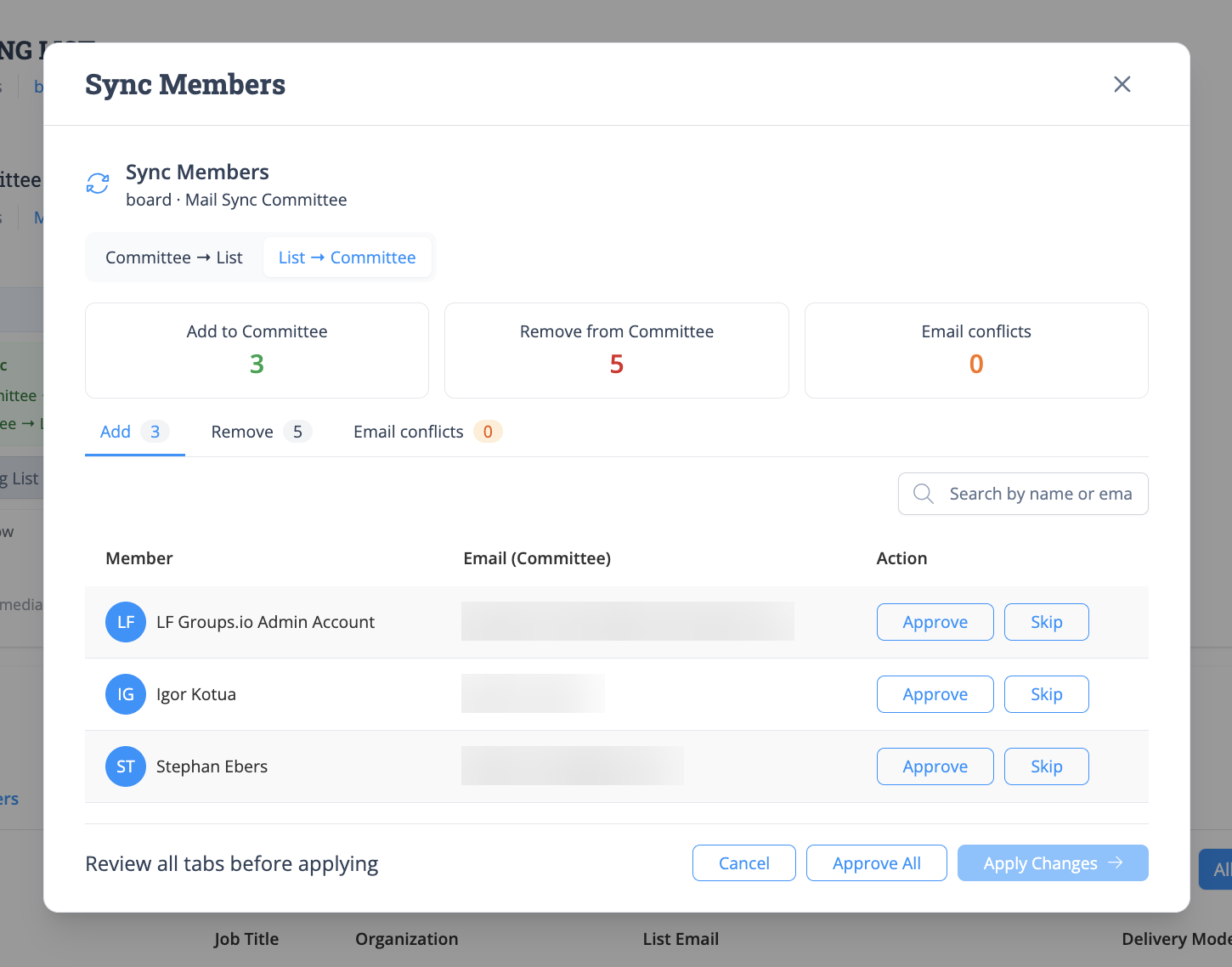
  1. PCC shows a preview of the members that would be added and removed on the destination (committee or list, depending on direction), including any members whose email address doesn't clearly match an existing identity on the other side (flagged for your review).

  2. Uncheck any rows you don't want applied.

  3. Confirm to apply — only the rows you left checked are added or removed.

The Sync Now preview, with Add / Remove / Email conflicts tabs to review before applying

Common scenarios (support reference)

"I added someone to the committee but they weren't added to the mailing list." Check the list's Sync Settings (Manage Members page): if the direction is List → Committee or Manual, Committee → List changes aren't propagated automatically — use Sync Now. If the direction is Committee → List and auto sync is on, also check the Committee Filter: the person may not match the selected voting status.

"Someone was removed from the committee but is still on the mailing list." Expected if the list is public — on Committee → List, removals only propagate on private lists; additions propagate on both. To get automatic removals, the list needs to be private.

"The user sees a message that they can't set up sync because of a conflicting direction." This means another list on the same committee already has an active rule that conflicts:

  • If the existing rule is List → Committee, no other list on that committee can be set to Committee → List (and only one List → Committee list is allowed, full stop).

  • If the existing rule is Committee → List, the user can add another Committee → List list on the same committee — multiple are allowed — but not a List → Committee one. Turn off or change the conflicting rule first, or use Manual sync alongside it instead.

"A list member wasn't added to the committee (List → Committee), or manual sync showed an error for them." Two expected causes: (1) the person isn't a known LFX user yet — sync can't create the account, so they're skipped/errored and must be added to the committee manually; (2) the person is already on the committee under a different email address — they're skipped to avoid a duplicate, and show under the preview's Email conflicts tab. See When a List → Committee member can't be added.

"The user wants both directions in sync at once." Not supported as an automatic rule — a committee can't have both Committee → List and List → Committee active at the same time. Use Sync Now periodically in the other direction as a manual workaround.

"The Sync Now preview looks wrong." The preview is a diff between current committee membership and current list membership at the moment it's run — it reflects live state, not a cached snapshot. Members show up in the Add or Remove tab based on which side they're missing from; admins can uncheck rows before applying.

"Sync Now is stuck." It runs as an asynchronous background job and can take longer for large committees/lists. If it stays in a loading state for more than a few minutes, escalate to engineering.

Escalating to engineering: collect the project ID, mailing list name/group ID, committee name, configured sync mode (Committee → List / List → Committee / Manual), what happened vs. what was expected (with the specific member's email if applicable), and roughly when it happened.

Known limitations

  • Sync only affects membership (who is in the committee / on the list) — it does not sync roles or other committee-specific fields, except where the Committee Filter determines the voting status assigned on List → Committee sync (see above).

  • Manual additions (e.g. via Add Member on the mailing list) always work regardless of the configured sync direction — they just aren't reconciled against the other side automatically until the next sync.

  • List → Committee sync only adds people who are already known LFX users. A list subscriber with no LFX user account is not added to the committee — auto sync skips them and manual sync reports an error. They must be added manually until automatic user creation is available in a later release.

  • List → Committee sync won't add someone already on the committee under a different email. To prevent duplicate committee members, a subscriber whose email differs from their existing committee record is skipped (auto sync) or flagged as an error under the preview's Email conflicts tab (manual sync).

Last updated

Was this helpful?